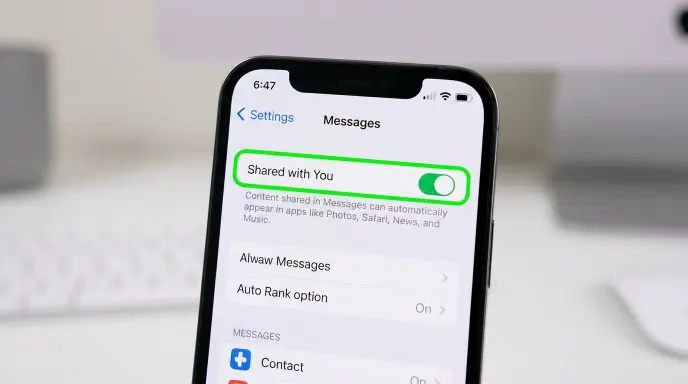
Have you ever seen the phrase “Show in Shared With You” on your iPhone and wondered what it means?
Maybe you noticed it while using:
- Messages
- Safari
- Apple Music
- Photos
- Podcasts
- TV app
and felt confused.
Many iPhone users see this setting but do not fully understand what it actually does. Some people think it is related to privacy, while others believe it controls shared files or messages.
That is why many users search:
- What does Show in Shared With You mean?
- Is Shared With You safe?
- How does Shared With You work?
- Can I turn Shared With You off?
- Why are photos showing in Shared With You?
The good news is that the feature is very simple.
“Shared With You” is an Apple feature that automatically shows content people send you in Messages across other Apple apps.
For example:
- A friend sends you a link
- A family member shares photos
- Someone sends music or a podcast
Your iPhone can automatically place that content inside related apps for easier access.
In this guide, you will learn:
- What “Show in Shared With You” means
- How the feature works
- Which apps use it
- Whether it is private or safe
- How to turn it on or off
- Why people use it
Let’s explain everything in simple English.
What Does “Show in Shared With You” Mean?
“Show in Shared With You” is an Apple feature connected to the Messages app.
When someone sends you content in iMessage, your iPhone can automatically display that content inside other apps.
The feature helps you quickly find shared content without searching through old chats.
Example
If a friend sends:
- A Safari link
- A song
- A movie
- A podcast
- Photos
your iPhone may automatically place those items inside:
- Safari
- Apple Music
- Apple TV
- Photos
- Podcasts
This section is called:
Shared With You
How Does Shared With You Work?
The feature works through Apple Messages.
When someone shares supported content with you in iMessage:
- Your iPhone detects the content
- It organizes the content automatically
- The content appears inside compatible apps
For example:
- Shared music appears in Apple Music
- Shared links appear in Safari
- Shared photos appear in Photos
This makes it easier to revisit shared content later.
what is show in shared with you?
Several Apple apps support this feature.
Safari
Shows links people send you.
Apple Music
Shows songs and albums shared in Messages.
Apple TV
Displays shared movies and shows.
Photos
Shows photos shared through Messages.
Podcasts
Displays podcast links friends send you.
News
Shows shared news articles.
These apps can automatically organize content from conversations.
What Does “Show in Shared With You” Toggle Mean?
The toggle simply controls whether apps display shared content from Messages.
If Turned ON
Apps will show shared content automatically.
If Turned OFF
Apps will stop displaying shared content.
The original messages still stay in your chat history.
Is Shared With You Safe?
Yes. The feature is generally safe.
It only works with content shared through:
Apple Messages (iMessage)
Apple does not publicly share your private messages through this feature.
The content stays connected to your Apple account and devices.
Does Shared With You Mean Someone Is Tracking Me?
No.
The feature does not mean:
- Someone hacked your phone
- Someone tracks your activity
- Someone accesses your private information
It is simply an organizational feature created by Apple.
Why Do People Use Shared With You?
People like the feature because:
- It saves time
- It organizes shared content
- It helps find links easily
- It keeps conversations connected to apps
Instead of searching through old texts, users can quickly access shared items inside apps.
Example of Shared With You
Example 1 – Safari
Friend sends:
“Check this website.”
The link later appears inside Safari’s Shared With You section.
Example 2 – Apple Music
Someone shares a song.
The song later appears inside Apple Music automatically.
Example 3 – Photos
A family member sends vacation photos.
Those photos may appear in the Photos app under Shared With You.
Can You Turn Off Shared With You?
Yes. You can disable it anytime.
How to Turn Off Shared With You on iPhone
- Open Settings
- Tap Messages
- Tap Shared With You
- Turn the feature OFF
You can also disable it for specific apps only.
For example:
- Keep it ON for Photos
- Turn it OFF for Safari
Can You Remove Shared Content?
Yes.
You can:
- Delete conversations
- Remove shared items
- Hide Shared With You sections
This helps keep apps cleaner and more private.
Does Shared With You Work With SMS Texts?
No.
The feature mainly works with:
iMessage content
Regular SMS messages usually do not support Shared With You features.
what does show in shared with you mean on iPhone?
Yes.
If you use the same Apple ID on:
- iPhone
- iPad
- Mac
the feature may sync shared content across devices.
Is Shared With You Automatic?
Yes.
Once enabled, your Apple device automatically organizes supported content from Messages.
You usually do not need to manually save items.
Why Is Shared With You Missing?
The feature may not appear because:
- iMessage is disabled
- Shared With You is turned off
- Your iPhone software is outdated
- The app does not support the feature
Updating iOS often fixes the issue.
Shared With You vs Shared Albums
These are different features.
Shared With You
Automatically organizes message content.
Shared Albums
Lets users create collaborative photo albums.
Many users confuse the two features.
FAQs About “Show in Shared With You”
What does Show in Shared With You mean?
It lets Apple apps display content shared through Messages.
Is Shared With You safe?
Yes. It is an Apple organizational feature.
Does Shared With You mean someone hacked me?
No.
Can I turn Shared With You off?
Yes. In iPhone Settings.
Does Shared With You work on all apps?
No. Only supported Apple apps.
Does it work with Android texts?
Mostly no. It mainly supports iMessage.
Can I remove Shared With You items?
Yes.
Is Shared With You private?
Yes. The content stays connected to your Apple account.
Why do photos appear in Shared With You?
Because someone sent them through Messages.
Can Shared With You sync across devices?
Yes, with the same Apple ID.
Conclusion
Now you fully understand what “Show in Shared With You” means on iPhone and Apple apps.
The feature helps organize links, music, photos, videos, podcasts, and other content people send through iMessage.
Instead of searching old chats, Apple automatically places shared content inside related apps for easier access.
The feature is generally safe, private, and optional. You can turn it on or off anytime in your iPhone settings.
Now when you see “Show in Shared With You,” you will know exactly what it means and how it works on your Apple device.

I am William Turner, a lover of clever words and playful ideas. I turn everyday moments into laughs and smiles. On punsprout.com, I share fresh puns and witty content to keep creativity growing.